Using Stream Categories and Tags to Understand a Creator’s Actual Broadcast Format
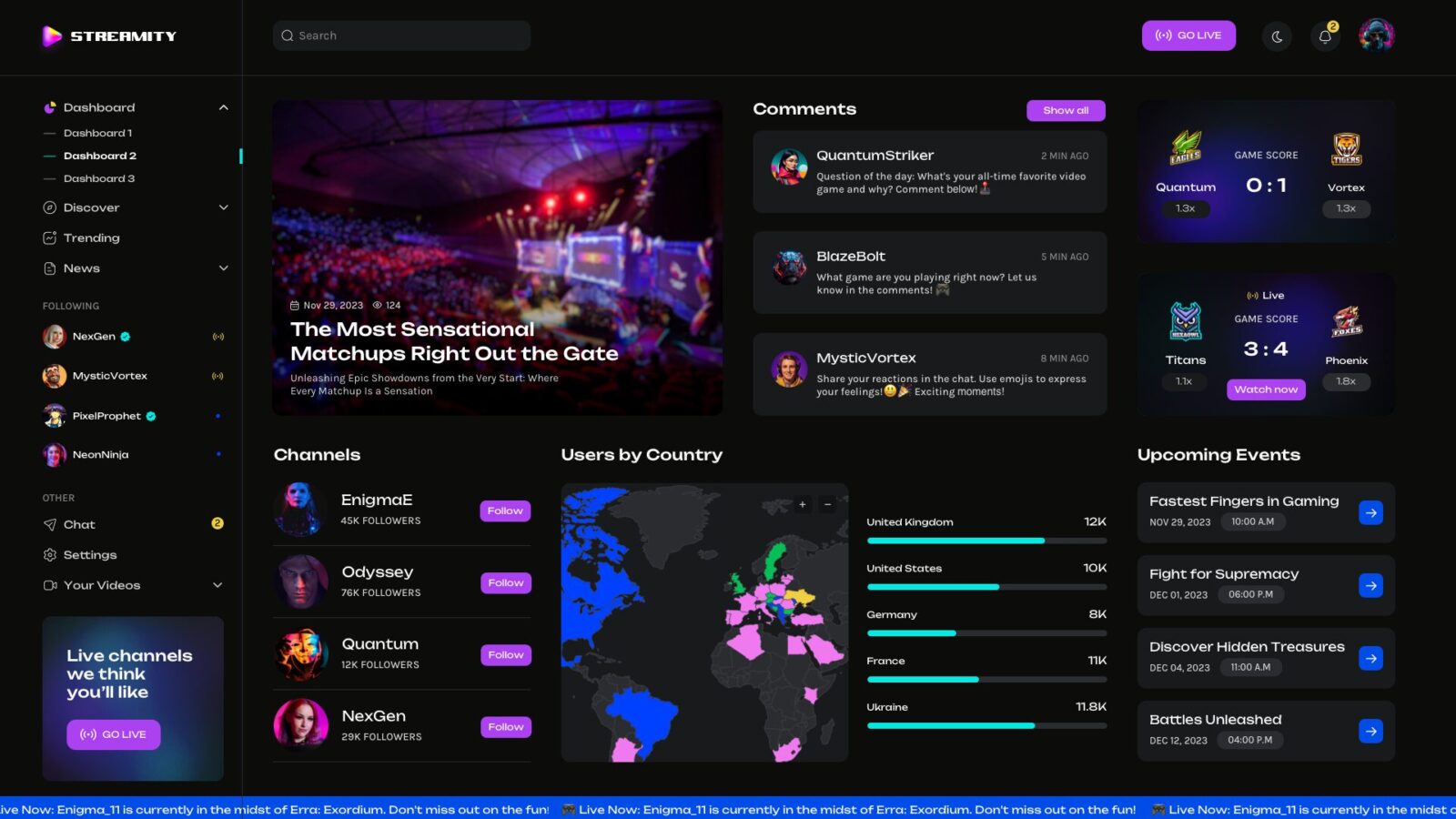
When browsing Twitch, Kick, or YouTube Live, a stream may not match the impression created by its title. A broad category such as “Just Chatting” can cover interviews, reactions, casual conversations, news commentary, and community Q&A. A game category identifies what is being played, but it does not tell you whether the creator is competing seriously, teaching beginners, or simply playing with friends.
Categories, tags, and titles provide useful clues, but they are not definitive proof of a creator’s usual format. Metadata can be outdated, incomplete, or selected differently across platforms. A more reliable assessment combines the current category, visible tags, title, live preview, recent broadcasts, and the creator’s normal schedule.
Platform differences also matter. Twitch allows creators to attach up to 10 custom tags to a stream. Kick’s current creator tools include a title, category, tags, language, and mature-content setting. On YouTube, ordinary video tags are mainly back-end metadata; YouTube states that the title, thumbnail, and description are more important for discovery and that tags usually play only a minimal role.
How to Identify a Streamer’s Actual Broadcast Format Through Categories and Tags
Start with the category, then use the title and tags to narrow the interpretation. Finally, compare those signals with what is visible in the preview or recent broadcast history.
A category usually identifies the main subject at that moment. Tags add details such as language, mood, audience, play style, accessibility features, or the purpose of the session. The title can provide information that neither field captures, including the creator’s goal, guest, challenge, or planned activity.
Do not classify a creator from one broadcast alone. Someone who normally streams competitive games may hold an occasional Q&A, while a variety creator may spend several weeks finishing one title.
Identifying “Talkshow & Chatting” (Talkshow / IRL) Formats
This format centers on conversation, commentary, interviews, audience interaction, or real-world activities.
Primary Categories: Depending on the platform, examples may include Just Chatting, IRL, Podcasts & Talk Shows, or a topic-specific discussion category. Category names are not identical across Twitch, Kick, and YouTube.
Associated Tags: Q&A, Discussion, Cozy, Community, Educational, Interview, or language-related tags may suggest a conversation-focused session. Creators choose their own tags, so their availability and meaning can vary.
Broadcast Indicators: Look for a title that mentions questions, reactions, interviews, advice, or a particular discussion topic. A camera-centered preview and frequent responses to chat also support this interpretation.
“Just Chatting” does not automatically mean a relaxed community stream. It can also contain structured commentary, political discussion, performances, sponsored segments, or content requiring an age or classification label. Twitch and Kick treat content classification or mature-content labels separately from ordinary descriptive tags.
Identifying “Dedicated Gaming” (Main Game / OTP) Formats
A dedicated gaming creator regularly focuses on one title, genre, competitive ladder, or specialized challenge.
Primary Categories: A specific game such as League of Legends, VALORANT, Counter-Strike 2, or Apex Legends identifies the current game but not the player’s skill level or purpose.
Associated Tags: Competitive, Ranked, Speedrun, Educational, First Playthrough, No Commentary, or Beginner Friendly can provide additional context when the platform offers those tags or the creator adds comparable custom tags.
Broadcast Indicators: Check whether the title includes a rank target, tournament, coaching session, speedrun category, challenge rule, or learning objective. Recent broadcasts are especially useful: repeated coverage of the same game over several weeks is stronger evidence of a dedicated format than one current category.
Terms such as “high-level” or “professional” should not be accepted solely because they appear in a title or tag. Verify competitive credentials through tournament records, official team pages, public rankings, or the creator’s documented history when that distinction matters.
Identifying “Variety Streamer” Formats
A variety streamer changes games, topics, or activities regularly, with the audience following the creator rather than one permanent category.
Primary Categories: Recent broadcasts may rotate among games, Just Chatting, art, music, cooking, IRL content, or special events.
Associated Tags: Variety, Casual, First Playthrough, Blind Playthrough, Community Games, or similar descriptions may support the classification, but not every platform provides a formal “Variety” tag.
Broadcast Indicators: Review several recent sessions rather than the current stream. Frequent category changes across different days, recurring community segments, and titles emphasizing the creator’s reactions or personality are more persuasive than one tag.
A creator who changes activities during a single broadcast is not necessarily a variety streamer. The label is more useful when rotation is a consistent part of the channel’s broader programming.
Core Differences Between Categories and Tags in Live Streaming
Categories and tags both organize content, but their implementation differs by platform.
| Evaluation Criteria | Category | Tag |
|---|---|---|
| Scope & Nature | Identifies the current main game, activity, or broad subject | Adds secondary details such as language, format, mood, audience, or session goal |
| Quantity Limit | Twitch and Kick generally use one current stream category; YouTube uses broader video-category metadata rather than the same directory structure | Limits vary by platform. Twitch currently permits up to 10 custom stream tags; Kick supports tags but its public setup guide does not state a universal number |
| Algorithmic Role | Can place a stream within a game or topic directory and help viewers browse related broadcasts | May support filtering or discovery, but platforms do not disclose a simple formula showing how each tag affects recommendations |
| Example | VALORANT | Competitive, Educational, English, First Playthrough |
On Twitch, tags can appear with the title and category and can be used for searching or filtering streams. On YouTube, creators should not treat ordinary video tags as an equivalent viewer-facing system: YouTube says they are mainly useful for common misspellings and otherwise contribute little to discovery.
A practical distinction is that the category answers, “What is the main subject right now?” Tags and the title help answer, “What kind of session is this?”
Decoding the Strategy Behind Mid-Stream Category Switching
A category change during a long broadcast usually means the activity has changed. It should not automatically be interpreted as a sophisticated audience-retention strategy.
Kick explicitly tells creators to update the category when they move from one game or activity to another. Its guidelines describe intentionally using an inaccurate category to attract viewers as category abuse. Kick also allows creators to update the title, category, and labels during a live broadcast.
A stream may still follow a recognizable sequence:
Warm-up Phase (Pre-Show): The creator may begin by greeting viewers, discussing the plan, or resolving setup issues under a chatting category. There is no standard duration, and many creators begin their main content immediately.
Core Content Phase (Main Event): The category changes to the game, artwork, music activity, or event currently being shown.
Cooldown & Raid Phase (Wind-down): The creator may return to conversation, review the session, or send viewers to another live channel through a raid where the platform supports it. Twitch describes raids as a feature that transfers viewers to another creator after a stream.
Not every stream uses all three phases. Category switching should be read primarily as evidence that the current activity changed, not proof of a particular growth strategy.
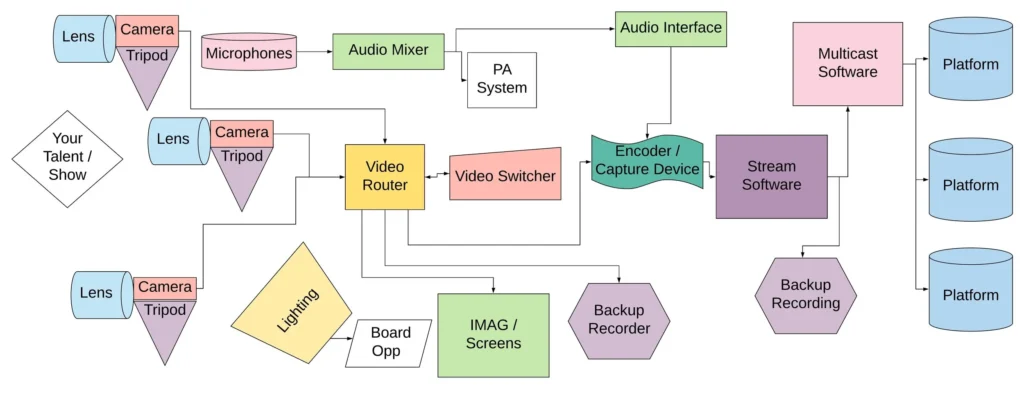
How to Set Up Categories and Tags Correctly (For Streamers)
Accurate metadata helps viewers understand what they are about to watch. It may also place the stream in the appropriate directory or search context. There is no public evidence that every platform applies a specific “bounce-rate penalty” whenever metadata is inaccurate, so creators should not rely on that claim.
1. Avoid “Clickbait” Categories and Tags
Do not select a popular game when the stream is actually showing another activity. The title, category, preview, and tags should describe what viewers will encounter after clicking.
Kick expressly prohibits using the wrong category to attract additional viewers. Twitch also requires content to appear in the correct category and expects applicable content-classification labels to be used.
A strong title can still be interesting without being misleading. State the game, activity, guest, challenge, or goal rather than relying on vague claims such as “Big surprise” or “You won’t believe this.”
2. Update Categories in Real Time
Change the category when moving from conversation to gameplay, switching games, or starting a different activity. Update the title as well when it describes a segment that has already ended.
The metadata does not need to change for every short break. A five-minute conversation between matches can remain under the game category if gameplay is still the session’s main activity. A long transition into a different format should be reflected in the category.
3. Build a Structured 3-Tier Tag Set
The following structure is an editorial method, not an official requirement shared by every platform:
Layer 1 – Language & Accessibility: English, Bilingual, Closed Captions, or other available accessibility information.
Layer 2 – Style & Tone: Chill, Competitive, Educational, High Energy, or No Commentary.
Layer 3 – Session Objective: Q&A, First Playthrough, Rank Push, Speedrun, Community Games, or Drops Enabled when the statement is accurate.
Use only tags that apply to the current stream. On Twitch, creators can add up to 10 custom tags. On Kick, the creator interface supports adding and removing tags. On YouTube, prioritize an accurate title, thumbnail, and description rather than filling the hidden video-tag field with broad keywords.
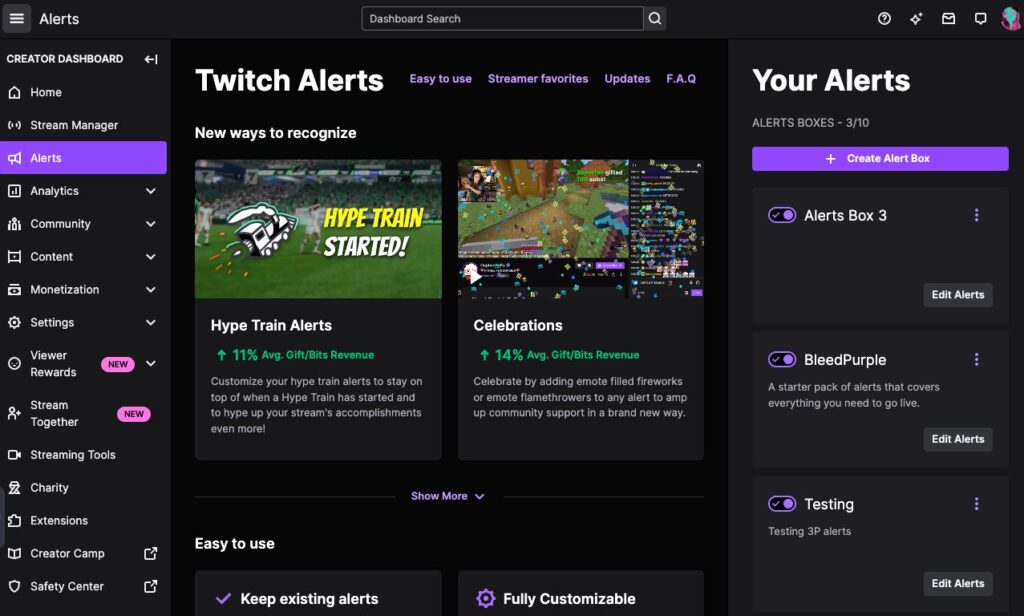
Categories and tags are useful starting points, but they do not reveal a creator’s complete format by themselves. The category identifies the current subject, while the title and tags add information about the style, audience, language, or purpose of the session. For a more accurate judgment, compare the metadata with the live preview and several recent broadcasts. This prevents a one-off event, outdated title, or temporary category from being mistaken for the creator’s normal programming.
Read the title, current category, visible tags, and preview before opening a stream. When deciding whether to follow or subscribe, review recent broadcasts to see whether the same format appears consistently. Keep the category and title aligned with the current activity, use only relevant tags, and apply the correct content label when required. Treat metadata as a clear description of the broadcast, not as a place to promise content that is not actually being shown.